Individual Family Member Programs (or Family Programs in short) give you the ability to group individual family members. Unlike Programs on the programs tab which groups Contacts (the Main Contact Record), the Individual Family Member Programs enable you to group specific family members. For example, say you need a list of children in Hebrew School or camp, using Family Programs, you can easily accomplish this.
With Family Programs you can define two levels: Programs and Sub Programs. This is useful for keeping track of specific Classes, Grades or Bunks. For example, you could create a Family program called Camp and create Sub Programs for each bunk. Or a Family program called School and Sub Programs for each grade.
Family programs also can track the enroll and expire date
Click Program Setup > Family Programs for more information on setting up Family Programs.
Currently Enrolled Only:
By default, only programs in which the selected family member is currently enrolled in are visible in the Family Programs list. To view all programs for the selected family member, uncheck this check box.
The currently enrolled status is controlled by the Enroll Date and Expired date that was entered when assigning a family member to a family program. In order to be considered currently enrolled, the current date needs to be between the Enroll Date and the Expire Date. If you one of the dates blank, the family member is considered to as Not currently enrolled in that program.
Add Program
To assign a program to a family member, first select the family member and then click Add.
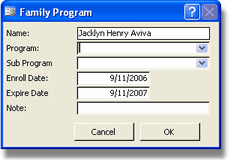
Name:
Displays the name of the selected family member.
Program:
Select a program you want to enroll this family member in.
Sub Program (optional):
Select a sub program you want to enroll this family member in. The list of Sub Programs is based on the Program you select.
Enroll Date (optional):
Enter a date when this family member is enrolling in the program (and sub program).
Expire Date (optional):
Enter a date when the family member will end his enrollment in the selected program (and sup program).
Note: The default enroll/expire date will be today and a year from today unless specified otherwise when setting up the Family Program (Program Setup).
Note (optional):
Enter a note regarding this family member's enrollment in this program.
Click OK to enter the information into the system or click Cancel to close the screen without saving.
Edit Program
To edit a family member's enrollment in a program, first select the program then click Edit. The Family Program screen appears. You can edit the data in that screen the same as when you enter a new program.
Remove Program
To delete a family member's enrollment in a program, first select the program then click Remove.
Note: Deleting a program does not delete the actual program. Other family members (of other contacts) enrolled in this program will remain unaffected. Deleting a program simply causes this family member to be disassociated with that program.
To delete the actual program, you need to go to Program Setup > Family Programs.